
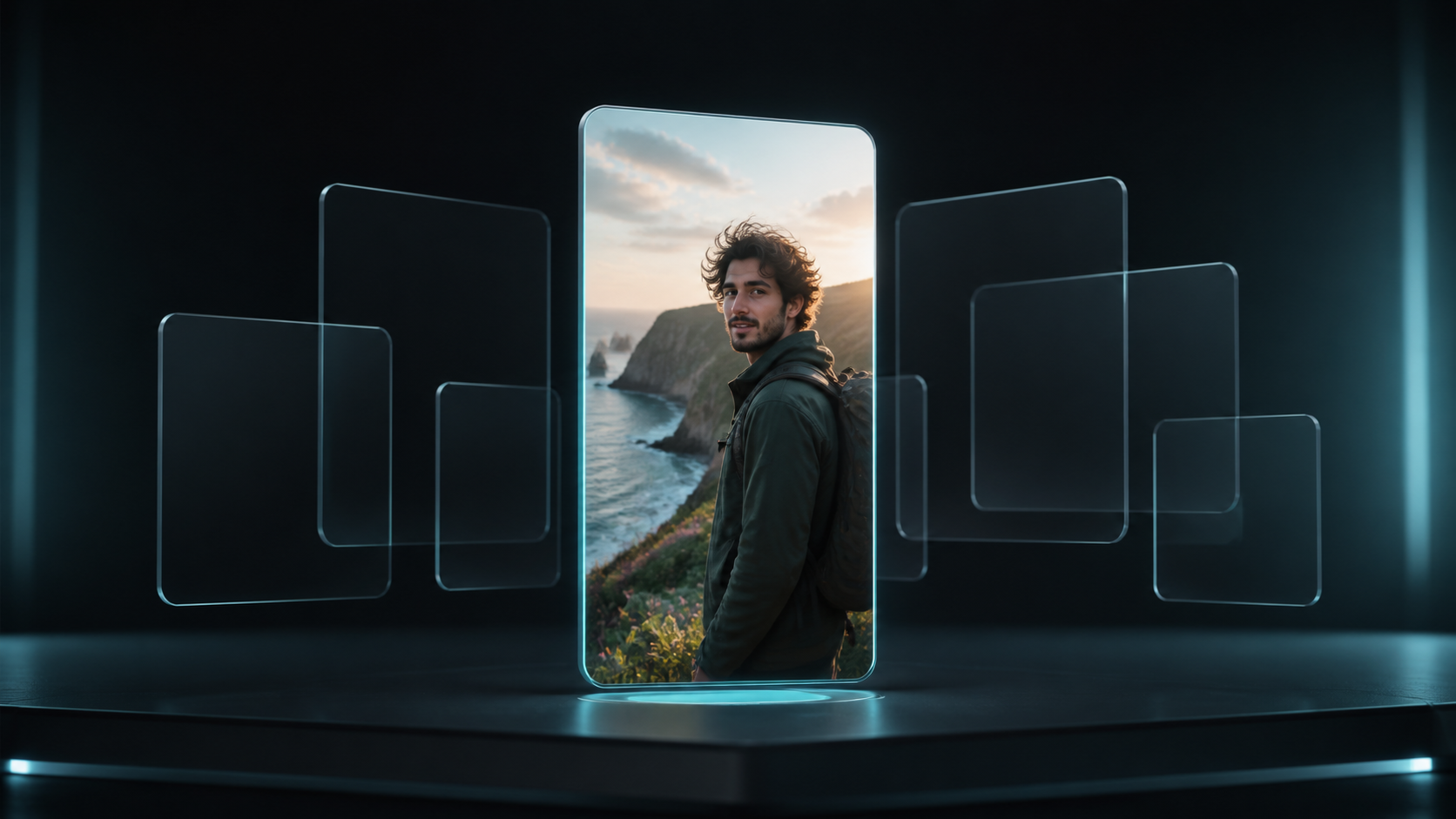
Set the Publishing Shape First
Choose a vertical, square, or widescreen ratio before generation instead of cropping the finished motion later.
Turn a portrait, character illustration or product photo into a moving scene with Instinct AI. Describe what should move and choose the settings supported by your model.
Animate a still image with directed motion, camera control and production-ready video models.
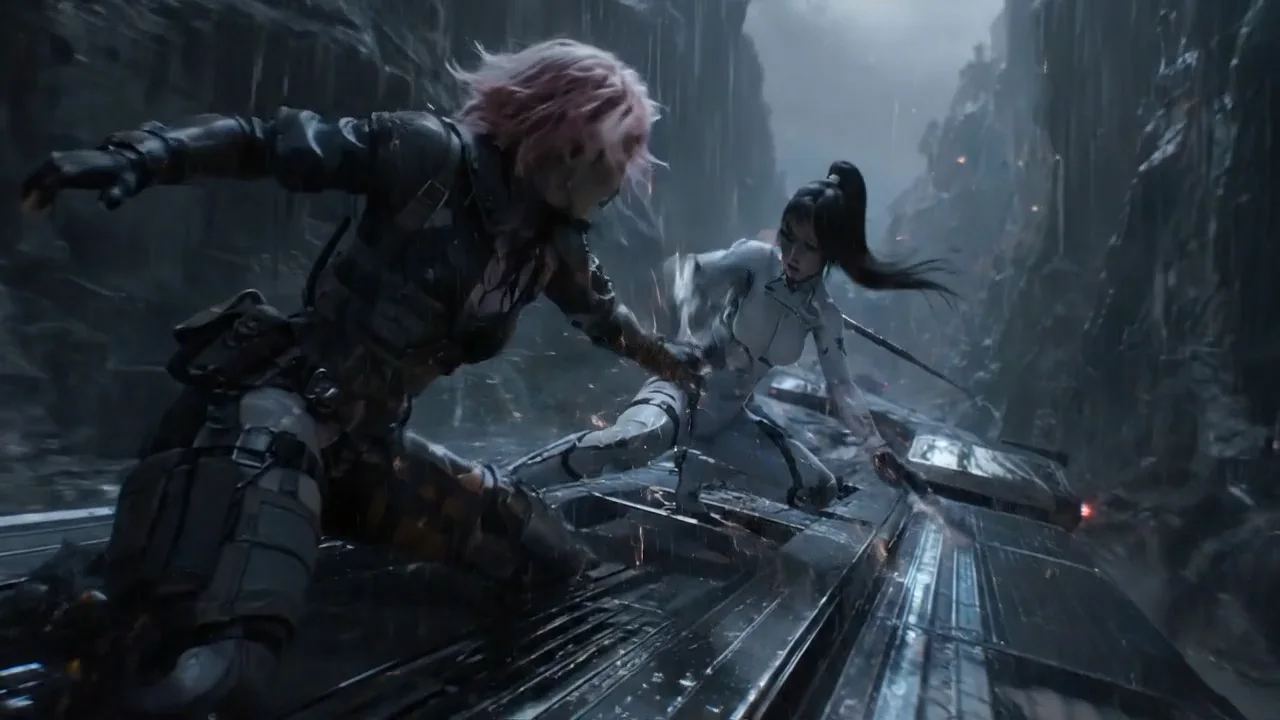
A 15-second cinematic sci-fi action chase in heavy rain. Two armored fighters battle on the roof of a speeding vehicle through a narrow mountain canyon at night. Wet metal reflections, violent wind, realistic rain, sparks from clashing weapons and a fast handheld orbit build toward a wide reveal of the convoy racing through the storm.
Upload a reference, describe what should move, and review the compatible model, format, duration, sound setting, and Credit quote before you run. Instinct AI keeps the source and finished clip in the same workspace so the next iteration starts with context.
Each example pairs an original source frame with its finished clip and the direction used to animate it. Copy the motion brief, then change the subject, camera move, or pacing for your own shot.
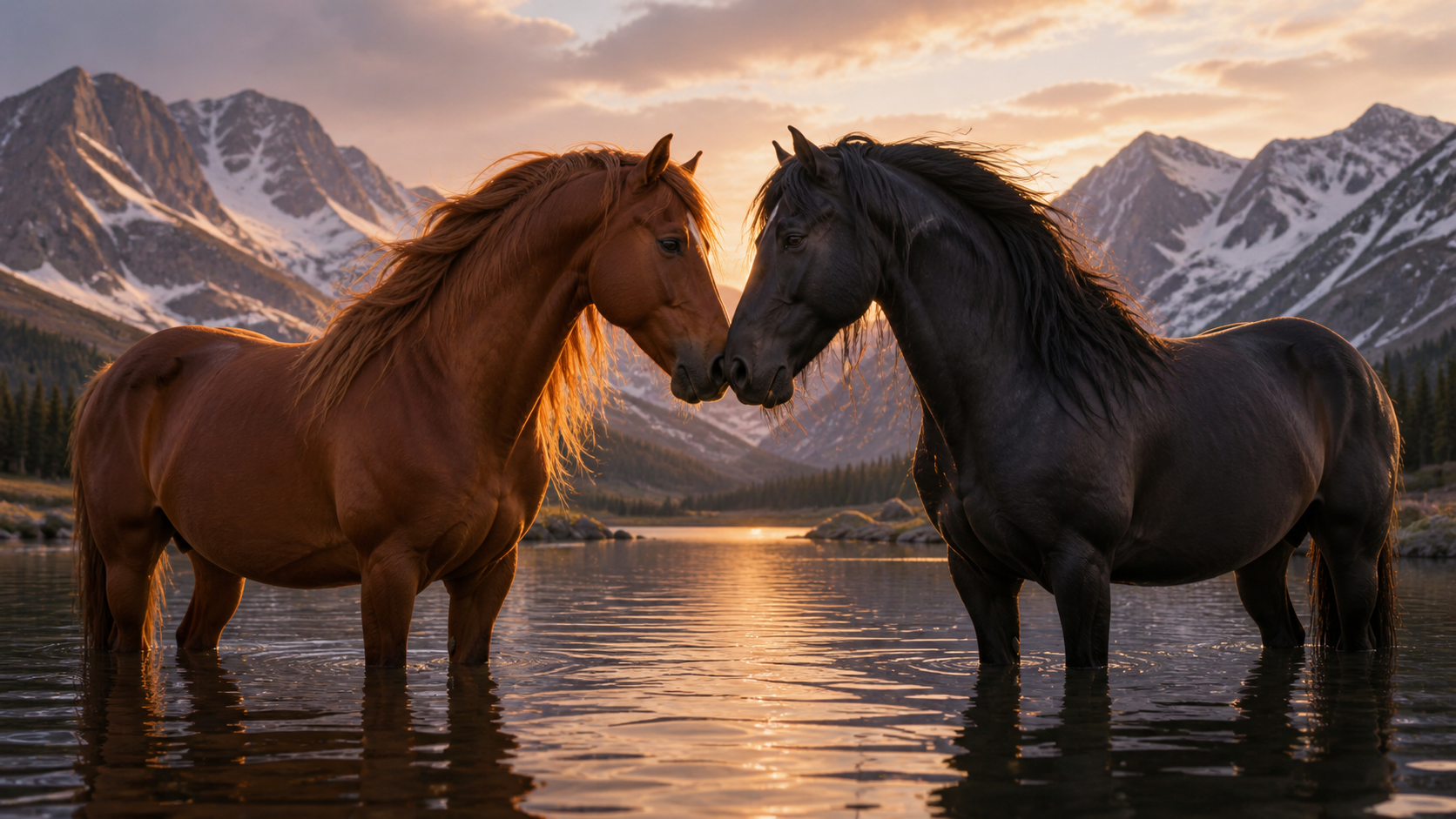
Use one selector to compare compatible video models. Available ratios, durations, resolutions, sound options, and the Credit quote update around the model you choose.
One connected workspace from source frame to reusable result
Choose a vertical, square, or widescreen ratio before generation instead of cropping the finished motion later.
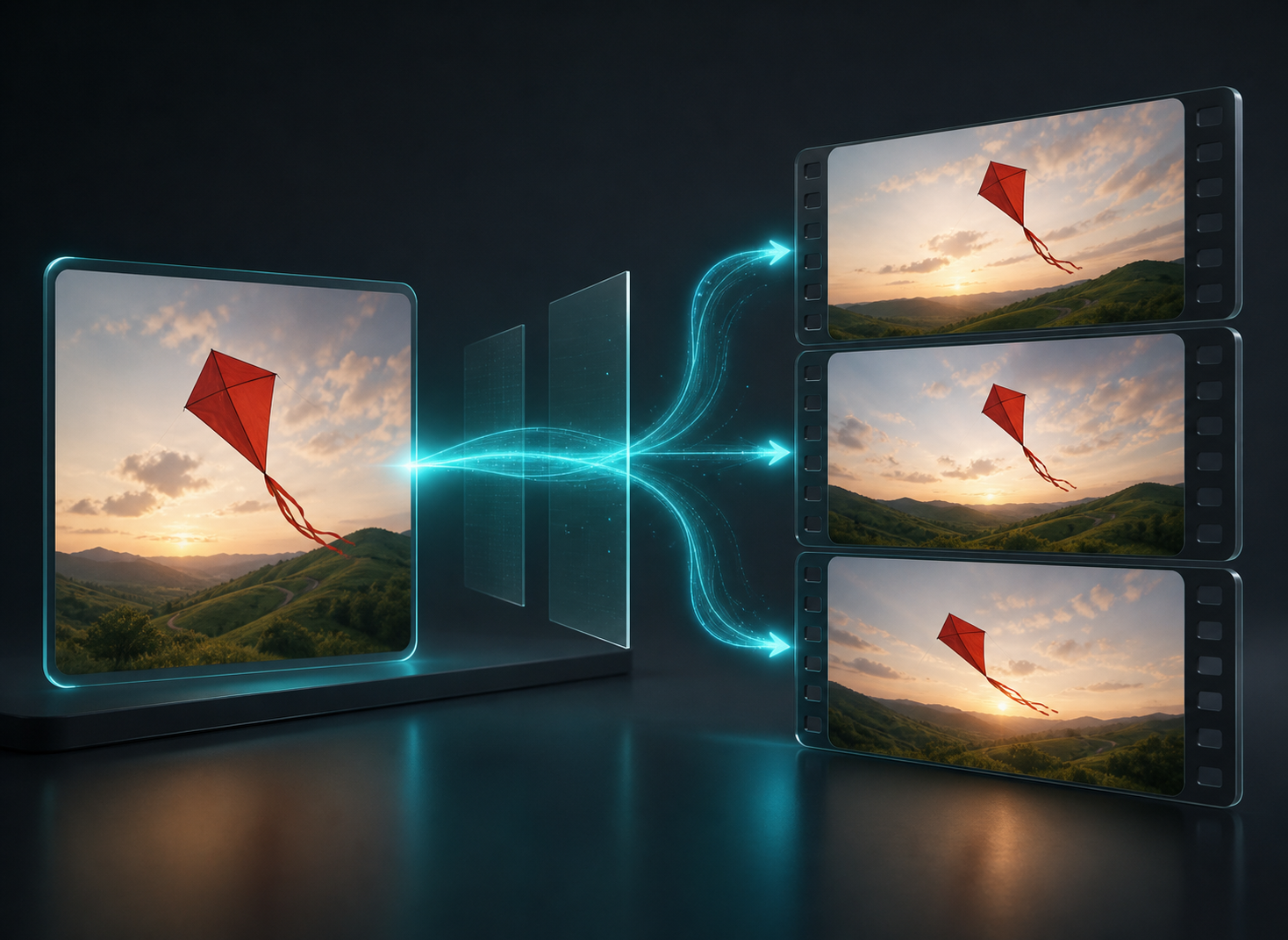
Direct what moves and how the shot behaves with a prompt, without building a manual editing timeline.
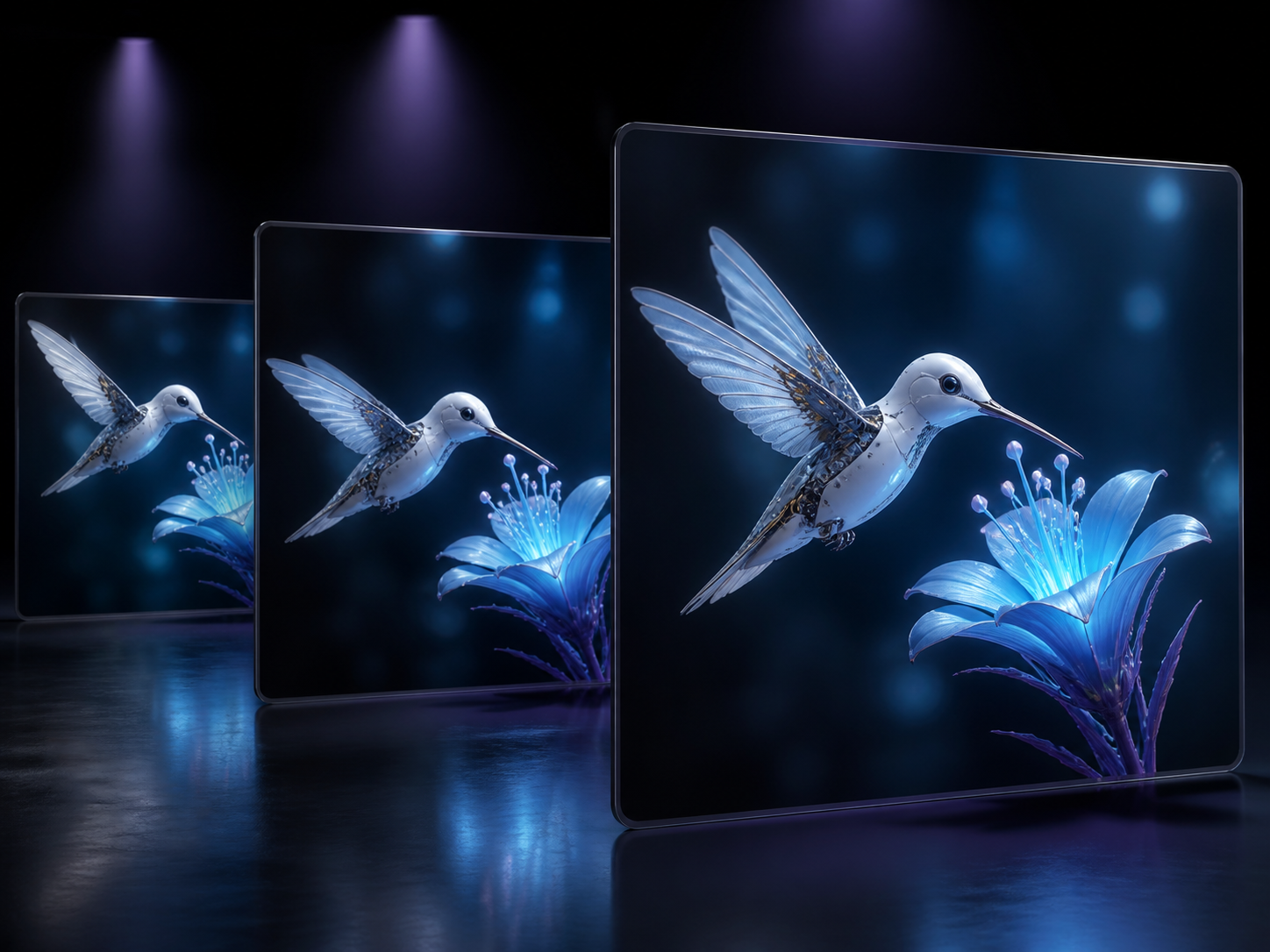
Start from a clear frame and use restrained direction when facial identity, product form, or composition matters.
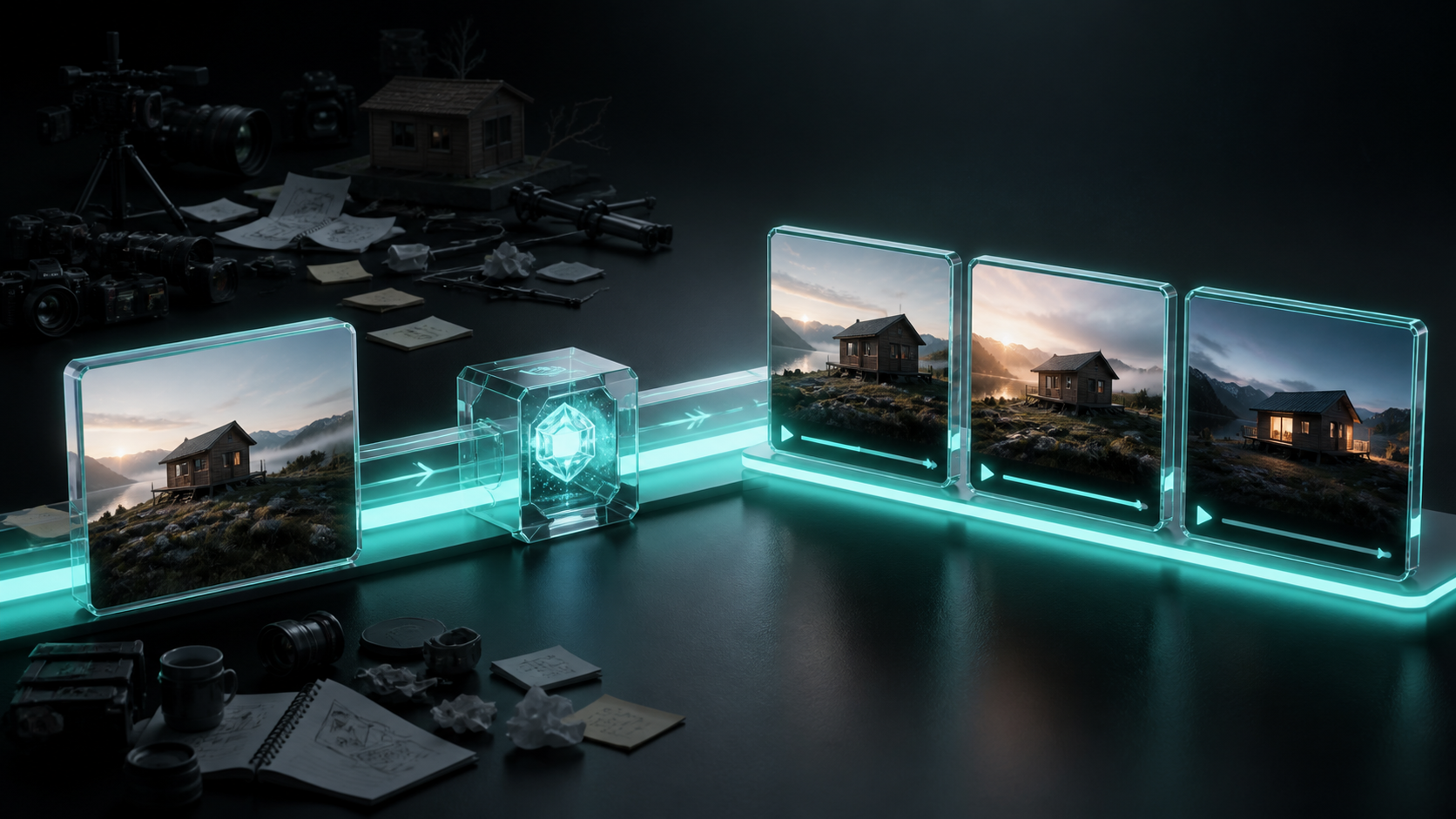
See the current estimate for the selected model and settings before submitting a generation.
Build the shot in three decisions: choose the frame, direct the movement, then confirm the output settings and Credit quote.
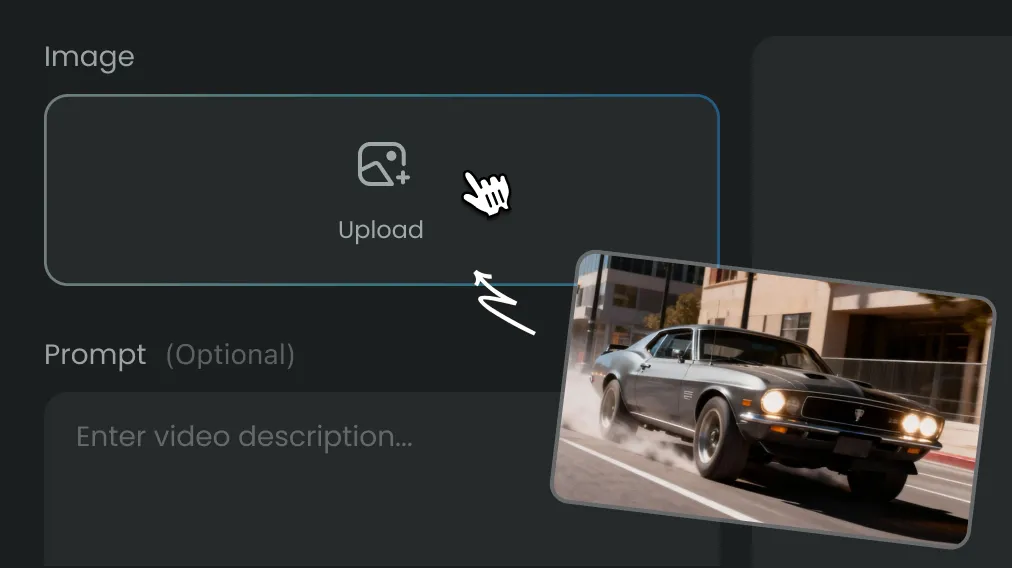
Use one credit balance across video, images, audio and Agent workflows. Choose a monthly or yearly plan, or a one-time credit pack. Generation costs are shown before you submit.
For trying models and starting smaller creative projects
$119.88 billed yearly
3,000 Credits / month
Secure checkout · cancel renewal anytime
For regular video, image and audio creation
$299.88 billed yearly
10,000 Credits / month
Secure checkout · cancel renewal anytime
For larger projects and more rounds of iteration
$959.88 billed yearly
30,000 Credits / month
Secure checkout · cancel renewal anytime
The selected video model uses the uploaded frame as a visual anchor for the subject, composition, and style while generating new frames for motion. Exact preservation varies by image, prompt, and model.
Use a sharp image with a readable subject, complete edges, and enough surrounding space for the intended movement. Heavy blur, blocked faces, severe crops, and tiny details leave the model less visual information to preserve.
State the subject action, camera behavior, pace, and environmental movement. Keep directions compatible with the source frame, and avoid asking for several unrelated scene changes in one short clip.
Begin with a clear front or three-quarter view, request restrained movement, and avoid abrupt camera changes. If the result drifts, shorten the instruction and change one variable at a time so you can see what improved it.
Some supported models can generate sound and others produce silent video. AI Sound can be turned on only when the selected model supports it.
Processing commonly takes a few minutes, but queue demand, provider response time, model, resolution, and clip duration can all change the wait. Progress remains visible in the workspace while the job runs.
The quote is calculated from the selected model and supported output settings, including duration or resolution where those affect cost. Instinct AI displays the current estimate before you submit the job.
Failed generation jobs are protected by Instinct AI's Credit-return policy. The workspace also keeps the failed state visible so you can adjust the setup and try again.
Yes. Available ratios depend on the chosen model and can include vertical, square, widescreen, and other formats. Select the intended publishing shape before generating.
You can use available signup Credits to test a compatible model. The interface shows the Credit estimate first, so you can decide whether to run that setup.
Free-plan output includes a watermark. Active Lite, Pro, and Ultra plans provide clean downloads, subject to the selected model and plan terms.
Commercial use requires an active Pro or Ultra plan and still depends on the selected model's terms and the rights attached to the source material. Upload only images you own or are licensed to use.
Bring in the source frame, direct the movement, compare compatible models, and keep the finished clip ready for another pass.